• Pricing

Features

  • Orders
  • Returns
  • Products
  • Categories
  • Clients
  • Chats
  • Analytics
  • Courier Pickups

Marketplaces

  • Allegro
  • Pigu
  • Erli
  • Empik
  • Shoper

Shipping

  • InPost
  • DPD
  • BL Paczka
  • Poczta Polska

Invoicing & Payments

  • wFirma
  • Fakturownia
  • Przelewy24
  • Gmail
  • eParagony

© 2026

Desktop AppContactPricingBlogTerms of UsePrivacy Policy

We value your privacy

Necessary cookies keep the service running. With your consent we also use analytics and marketing cookies to understand how you use the site and to measure our ads. You can change your choice at any time in the page footer. Privacy Policy

All posts
November 23, 2026
  • Guides

How to automate orders from Allegro

Five steps from importing orders to printing labels in bulk, so the copy-paste leaves your day.
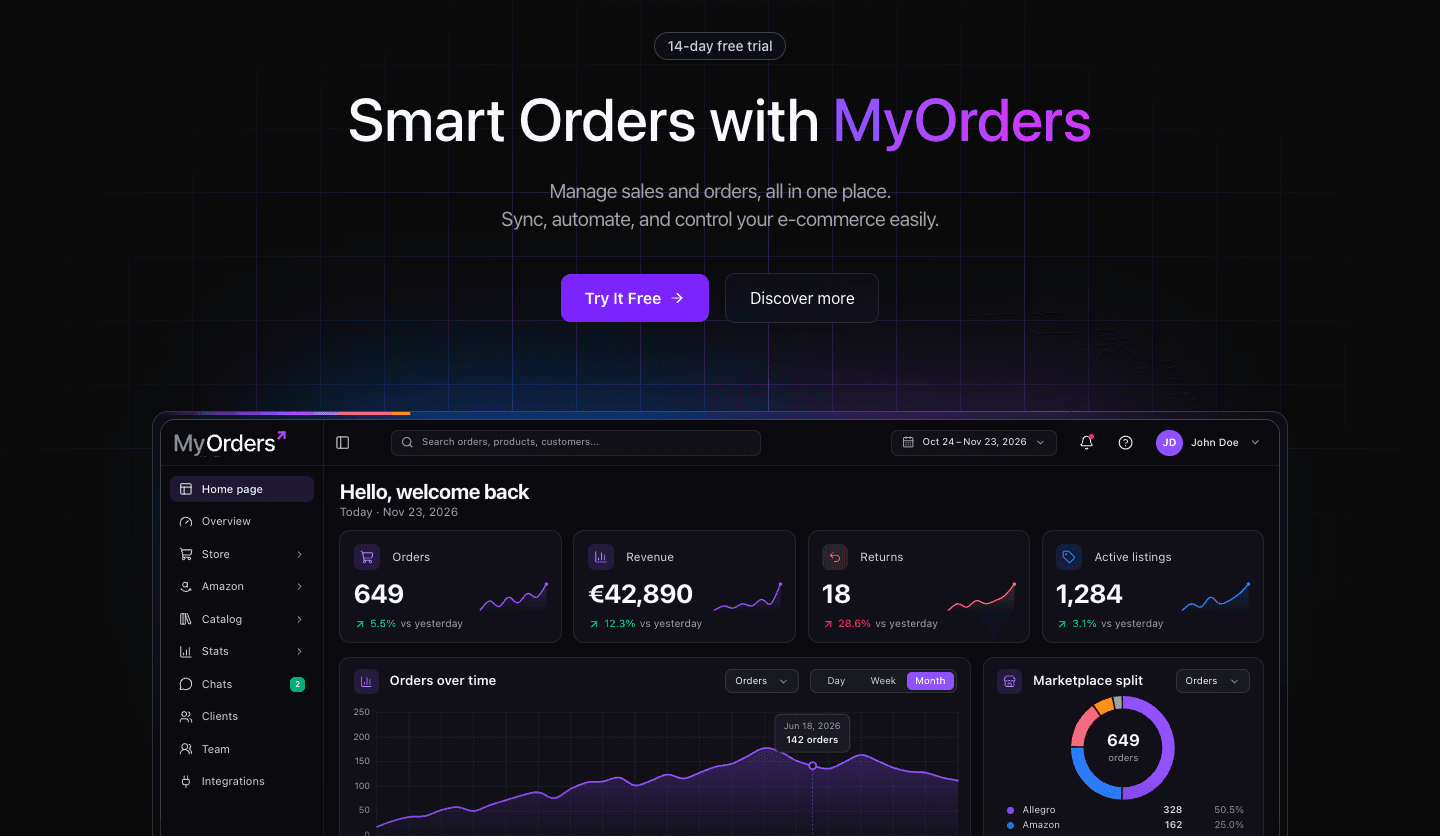
MyOrders dashboard with orders, revenue and returns

Most sellers start with a spreadsheet. MyOrders connects to Allegro in a few minutes and takes the copy-paste out of your day.

Why automate

Every order you retype is a chance for a typo in an address or a wrong quantity. Automation takes the routine and leaves you the decisions.

Five steps

  1. Connect your Allegro account.
  2. Choose what to bring in:
    • new and paid orders
    • buyer messages
  3. Set the default carrier for each delivery method.
  4. Print labels in bulk — select orders and print them all at once.
  5. Answer buyer messages from the same screen.
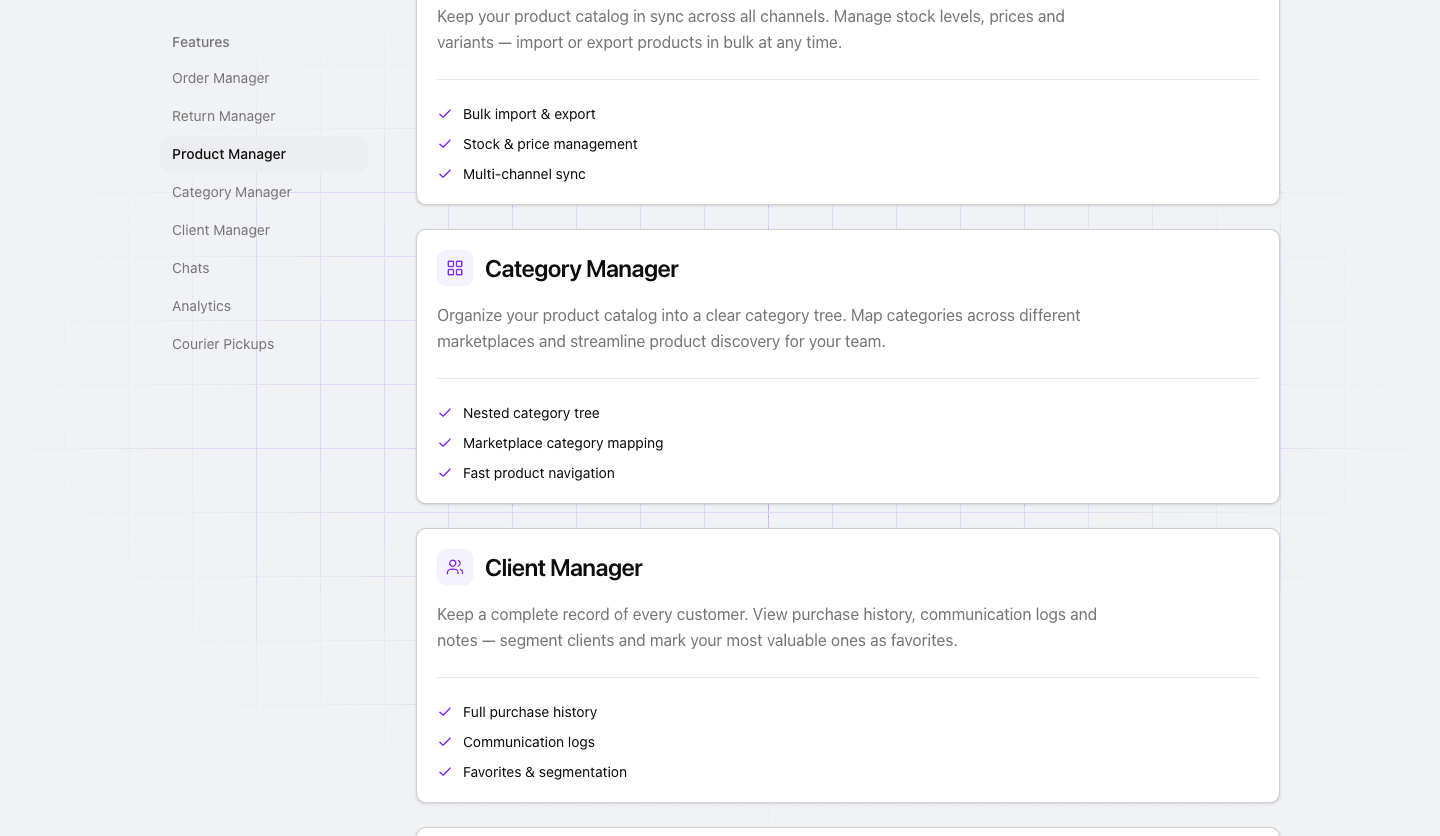
Product, category and client managers in MyOrders

Here is a short look around MyOrders:

A short tour of MyOrders

Before you start

  • An Allegro seller account
  • A carrier contract or an InPost account
  • Ten minutes for the setup
Tip: start with one delivery method, check the first few labels, then switch on the rest.

Try MyOrders free for 14 days

Connect Allegro and see all your orders in one place.

Start free trial